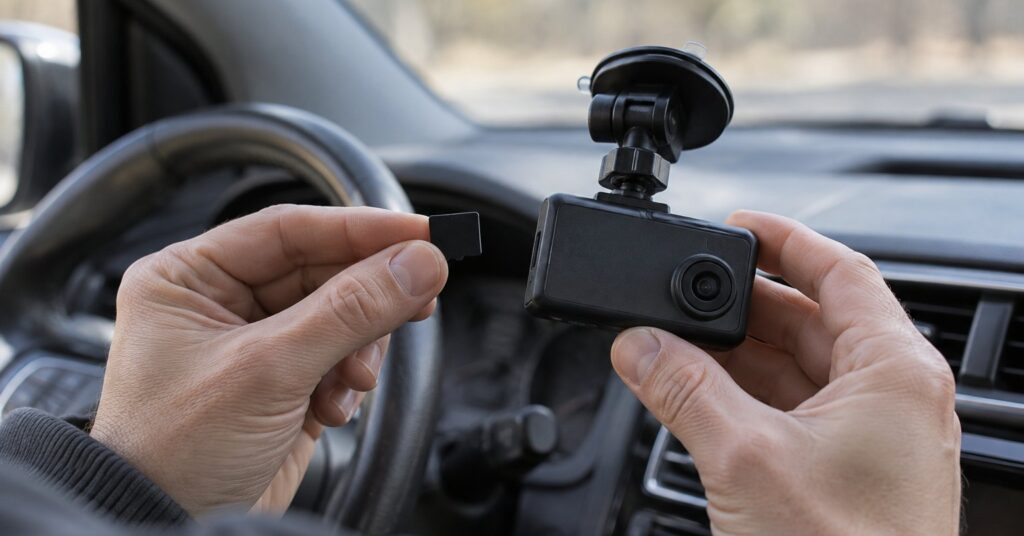
A dash cam can help you keep a record of a road incident without building an online library of your journeys. If you want a dash cam without cloud storage, start with how you will retrieve its memory card, then decide whether you need a phone app. This guide explains the options, the privacy settings to choose and how to preserve a useful recording.
Last checked October 28, 2026.
Quick answer
- Choose a camera whose manual explains how to read recordings directly from its memory card.
- For a simple routine, use the card and a computer; leave optional cloud features off.
- Keep the microphone off unless you have a clear reason to record conversations.
- Practise saving and copying a clip before you need one after an incident.
Why dash cam storage matters for your privacy
Think about what you want to keep: a short record of an incident, rather than a personal travel diary. Aim the lens at the road, decide whether an interior camera is necessary and tell regular passengers about your recording choices. Treat footage as private household information when deciding who should receive it.
Location information deserves attention too: VIOFO says the A119 Mini 2 embeds speed and location data in video files.1 Before sharing a clip, consider what it reveals about your home, workplace and routine.
Sound is a separate decision from video. In its surveillance guidance, the UK’s Information Commissioner’s Office describes continuous audio recording as more intrusive than visual recording and recommends switching audio off by default.7 Use that as a privacy starting point, and check the recording rules where you drive, particularly for work or passenger transport.
For related choices beyond the camera, see the guide to connected car accounts and using offline maps in the car.
Your options: card access, local Wi-Fi or optional cloud
1. Use a memory card and computer
This is a good starting point if you want a straightforward routine without using a phone to retrieve footage. As one example, the VIOFO A119 Mini 2 manual says that on a PC with a microSD slot, you can insert the memory card directly.2 Add a compatible card reader to your shopping list if needed.
The official VIOFO store shows a sale price of US$159.99.1 Budget separately for your chosen card, reader and any installation work. Compare the complete basket before buying.
- Pros: Suits people who prefer handling files on a computer and want to leave the phone out of their everyday routine.
- Cons: Plan time to retrieve the card and make a habit of putting it back before your next journey.
VIOFO describes this model as front-only, without support for adding a rear camera.1 Choose your coverage before buying rather than assuming you can expand it later.
2. Transfer clips locally to a phone
Choose this approach if you would rather retrieve a clip while sitting in the parked car. DashCamTalk lists Wi-Fi, Android and iOS apps for the A119 Mini 2, with no cloud connectivity.3 Its manual instructs you to connect the phone to the camera’s Wi-Fi before opening the VIOFO app.2
Wi-Fi is a wireless connection; the important question is what devices it connects and where the file goes. Review the app’s permissions and decide where to keep downloaded clips. Check your phone’s backup settings before treating a phone copy as local-only.
- Pros: Suits someone who wants convenient access near the car without choosing a cloud recording service.
- Cons: Include app setup and phone storage in your privacy routine; switch off the camera’s Wi-Fi when finished.
3. Choose a card camera with optional cloud backup
The Garmin Dash Cam Mini 3 manual says you can view and transfer videos by connecting the memory card or the camera to a computer.4 Garmin also offers Vault: with a paid subscription and a Wi-Fi network connection, the camera automatically uploads saved videos.5
For iPhone and iPad, the App Store lists Garmin Drive as free. Its version history shows 4.29.29 on Sep 17, above an entry dated 12/22/2025.6 That free app download is separate from the paid cloud service.
- Pros: Suits someone who wants card access now and may deliberately choose online backup later.
- Cons: For a card-only routine, leave Vault unconfigured; review the offered plan and storage terms before changing that choice.
Step-by-step: set up a dash cam without cloud storage
- Read the manual before ordering. Find the sections on card compatibility, computer playback, microphone controls and installation. Require a clear route from camera to usable video file.
- Prepare the card. Follow your model’s instructions for formatting it. Formatting erases the card, so copy anything important first.2
- Mount and power the camera carefully. Follow the installation instructions and keep your view clear. Ask a qualified installer about permanent wiring instead of improvising around vehicle wiring or airbags.
- Choose what to record. Start with road video and the microphone off. On the A119 Mini 2, the GPS logger has its own on/off setting.2 Decide whether you need location data and check the clock afterwards.
- Set your connection boundaries. Leave cloud subscriptions and automatic uploads unconfigured. If using a phone, connect only when needed and review where downloaded files and backups will live.
- Make a practice recording. While safely parked, learn the save control. Record a short journey, retrieve a clip and play it through. Check the date, view and sound before relying on the setup.
- Practise the incident routine. Learn to save footage promptly and copy the original into a clearly named private folder. With the VIOFO, turn the camera off before removing its card.2 Reinsert it before driving again.
Common mistakes to avoid
- Leaving an important clip unsaved. When the memory card is full, Garmin’s Mini 3 automatically deletes the oldest unsaved video.8 Preserve the relevant recording promptly.
- Keeping only an edited copy. Retain the original privately; make a separate copy for sharing.
- Posting the whole journey. Share only what is needed with the intended recipient. For editing options, see the LosslessCut guide.
- Ignoring maintenance. Schedule a playback check and follow the manufacturer’s card-care instructions. Recheck privacy settings after updates or resets.
Frequently asked questions
Can a dash cam record without internet?
Yes: the Garmin Mini 3 manual says the camera records to its memory card and, by default, starts recording when it turns on.8 Choose card recording and computer retrieval as your starting requirements.
Does a dash cam need a subscription?
Separate recording from optional services. Garmin identifies Vault as a subscription feature.5 Before buying, ask specifically whether your intended card-recording and file-retrieval routine requires payment.
Is a memory card the same as encrypted storage?
Do not assume encryption from the words “local storage.” Encryption means scrambling information so it needs a key to read. Ask for a documented encryption feature if that matters to you, and keep the card and copied files somewhere private.
Should I record inside the car as well?
Choose interior recording only for a clear purpose. Discuss it with regular passengers and consider whether road-only footage meets your needs. Make a separate, deliberate choice about sound.
Sources
- VIOFO: A119 Mini 2 product page
- VIOFO: A119 Mini 2 English user manual (V25.12.18)
- DashCamTalk: VIOFO A119 Mini 2
- Garmin: Dash Cam Mini 3 owner’s manual, Videos on Your Computer
- Garmin: Vault Storage
- Apple App Store: Garmin Drive
- Information Commissioner’s Office: Data protection principles for surveillance systems
- Garmin: Dash Cam Mini 3 owner’s manual, Dash Cam Recording